> For the complete documentation index, see [llms.txt](https://postica.gitbook.io/binding-system-3/llms.txt). Markdown versions of documentation pages are available by appending `.md` to page URLs; this page is available as [Markdown](https://postica.gitbook.io/binding-system-3/overview/modes-and-updates.md).

# Bind Modes and Update Points

Which way the value flows, and when it moves.

{% hint style="success" %}
**Learn by doing:** [A Health Bar with No Driver Class](/binding-system-3/tutorials/health-bar.md) sets an update point on a real binding and shows what happens when it is the wrong one.
{% endhint %}

## Bind modes

<table><thead><tr><th width="200">Mode</th><th>What it does</th></tr></thead><tbody><tr><td><code>Read</code></td><td>The source feeds your field. The bind path menu only offers members that can be read.</td></tr><tr><td><code>Write</code></td><td>Your field feeds the source. The menu only offers members that can be written.</td></tr><tr><td><code>ReadWrite</code></td><td>Both. The pipeline runs forwards on read and backwards on write.</td></tr></tbody></table>

Click the **mode icon** on the bind row to change it. The mode is also constrained by the field's type and by any attribute on it: a `ReadOnlyBind<T>` is always `Read`, and `[WriteOnlyBind]` forces `Write` on an ordinary `Bind<T>`.

{% hint style="info" %}
Mode and member capability have to agree. Reading through a write-only member, or writing through a read-only one, is caught when the binding is built and reported in the Inspector rather than at the call site.
{% endhint %}

## When the value moves

This is where the [two ways to bind](/binding-system-3/overview/two-ways-to-bind.md) part company, so it is worth being precise about which one you are looking at.

<table><thead><tr><th width="270">Binding</th><th>When it updates</th></tr></thead><tbody><tr><td>A <code>Bind&#x3C;T></code> field in your own code</td><td><strong>Your code is the update.</strong> The value resolves at the instant you read it, and travels the instant you assign it. Nothing is scheduled, and a binding nobody reads costs nothing.</td></tr><tr><td>A <a href="/binding-system-3/overview/proxy-bindings.md">proxy binding</a>, made from the Inspector</td><td><strong>The engine is the update.</strong> The bound component knows nothing about the binding, so the engine has to move the value, at a stage you choose.</td></tr></tbody></table>

Everything in the rest of this section, the update points, the intervals and Optimized Update, belongs to the second case.

{% hint style="info" %}
The **Update Points** group appears in the bind menu only on a proxy binding. A `Bind<T>` field gets **Auto Update** under **Settings** instead: one fixed refresh per frame, between `Update` and `LateUpdate`, with no stage to choose. See [Auto Update](#auto-update) below.
{% endhint %}

## Update points

On a proxy binding, open the bind menu and use **Update Points ▸ Update On**.

A new proxy binding does not start empty. The default is **UPDATE** plus [**Optimized Update**](#optimized-update), so a binding runs as soon as it has a source and a path. Change the default in **Project Settings ▸ Binding System**.

<figure><img src="https://3048705056-files.gitbook.io/~/files/v0/b/gitbook-x-prod.appspot.com/o/spaces%2FLUfBXR02sJ5i0MxwYbaV%2Fuploads%2Fgit-blob-f4cb88829631e55f398e2a0fb6c20fc64d9576b3%2Fupdate-points.png?alt=media" alt="Update points"><figcaption></figcaption></figure>

<figure><img src="https://3048705056-files.gitbook.io/~/files/v0/b/gitbook-x-prod.appspot.com/o/spaces%2FLUfBXR02sJ5i0MxwYbaV%2Fuploads%2FkqzDPwnD57jJsS1HEotl%2FScreenshot%202026-09-27%20at%2023.13.03.png?alt=media&amp;token=7cbc0d72-ee02-4996-8bda-30564c0dd3d6" alt="" width="441"><figcaption><p>The update points panel</p></figcaption></figure>

### Player loop points

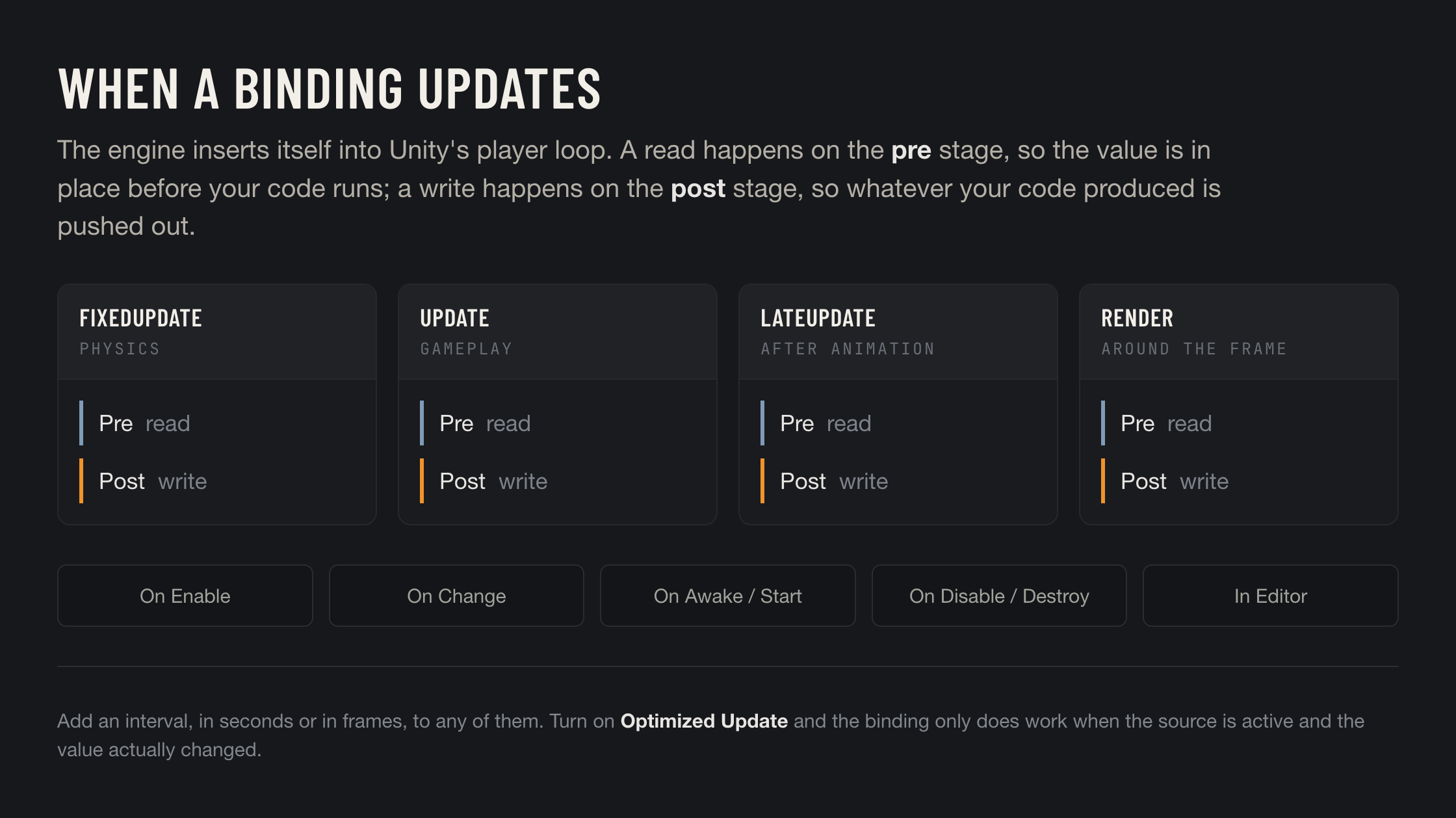
<table><thead><tr><th width="230">Point</th><th>When it runs</th></tr></thead><tbody><tr><td><strong>UPDATE</strong></td><td>Reads before <code>Update</code>, writes after it.</td></tr><tr><td><strong>LATE UPDATE</strong></td><td>Reads before <code>LateUpdate</code>, writes after it. The place for anything that has to follow animation.</td></tr><tr><td><strong>FIXED UPDATE</strong></td><td>Reads before <code>FixedUpdate</code>, writes after it. The place for physics.</td></tr><tr><td><strong>RENDER</strong></td><td>Reads before the frame is rendered, writes immediately after, which lands in the next frame.</td></tr></tbody></table>

The pre/post split is the point of this design. A read lands **before** your code runs, so the value is already correct inside `Update`. A write happens **after**, so whatever your code produced is pushed out.

### Lifecycle points

<table><thead><tr><th width="230">Point</th><th>When it runs</th></tr></thead><tbody><tr><td><strong>ON ENABLE</strong></td><td>Updates when the context GameObject is activated.</td></tr><tr><td><strong>ON AWAKE</strong></td><td>Updates in <code>Awake</code>, so the value is ready for your own <code>Awake</code>.</td></tr><tr><td><strong>ON START</strong></td><td>Updates in <code>Start</code>. Not available when the context is an asset rather than a scene object.</td></tr><tr><td><strong>ON DISABLE</strong></td><td>Updates when the context is disabled, so a final value is captured.</td></tr><tr><td><strong>ON DESTROY</strong></td><td>Updates when the context is destroyed, same idea.</td></tr></tbody></table>

### The edit time point

**EDITOR** updates the binding at edit time, without entering play mode. Use it for bindings that drive something you want to see while you are still authoring the scene.

{% hint style="warning" %}
Selecting several player-loop points at once means the binding runs several times per frame. The panel says so. Pick the one stage that matters.
{% endhint %}

If no point is selected the panel says *This bound field won't be updated automatically*. Take that literally: no stage will move the value. You will not land there by accident, since the default includes **UPDATE**, but you can get there by unticking it or by changing the project default.

## No update point, on purpose

An empty panel is not automatically a mistake. It is also how you say **"nothing schedules this binding, I will say when."** The [Bindings Monitor](/binding-system-3/project-tools/diagnostics/bindings-monitor.md) calls such a binding *Controlled*.

There are two ways to drive one.

### From code

Any object that owns or sources a binding can update it on demand. A binding with no update point does nothing until asked, and then does exactly one full update:

```csharp
this.UpdateAllBinds();                  // everything this object owns
this.UpdateBind("health");              // one path
this.UpdateBind("health", "shield");    // several
this.UpdateBind("stats.*");             // wildcards work too
```

Registration does not depend on the update flags, so a binding with an empty panel is still registered and still reachable this way. See [Controlling Bindings at Runtime](/binding-system-3/overview/runtime-control.md).

### From a UnityEvent

A proxy binding can be dropped into any `UnityEvent` as an entry. It appears in the event list as `<SourceType>.UpdateBinding`, with its own target and path, and the binding updates when the event fires. A button, a trigger, an animation event or a custom event becomes the thing that moves the value.

An entry whose field is not bound is flagged *! Field is Unbound* in the event list, so a half-finished one is visible rather than silent.

{% hint style="success" %}
This is the cheapest a binding can be. It costs nothing on the frames nothing happens, which makes it a good fit for values that change rarely and visibly: a score that updates when a pickup fires, a panel that refreshes when a menu opens, a label that follows a settings change.
{% endhint %}

{% hint style="info" %}
The distinction that matters when debugging: an empty panel plus something calling it is a **Controlled** binding, working as designed. An empty panel with nothing calling it is a binding that does nothing. The panel looks identical in both cases, so the question is always what is on the other end.
{% endhint %}

## Intervals

Any player-loop point can run on an interval instead of every frame. Two flavours, chosen with the dropdown beside the field:

<table><thead><tr><th width="200">Interval</th><th>What it does</th></tr></thead><tbody><tr><td><strong>Seconds</strong></td><td>Update at most every N seconds.</td></tr><tr><td><strong>Frames</strong></td><td>Update every N frames.</td></tr></tbody></table>

A UI value that a human reads does not need 60 updates a second. Ten a second looks identical and costs a sixth as much.

## Optimized Update

A toggle in the same panel, and the cheapest performance win available on a binding.

{% hint style="info" %}
To turn it on across a whole scene rather than one binding at a time, use the [Scene Visualizer](/binding-system-3/project-tools/diagnostics/scene-visualizer.md): it counts the bindings that still update every frame and switches them in one undo step. It counts only the ones this flag reaches, proxy bindings and UI Toolkit bindings, since a `Bind<T>` field refreshes only when its value changes in any case.
{% endhint %}

With it on, the update only does work when:

* the bound **source is active**, and
* the underlying **data actually changed**, in the direction the mode cares about.

<figure><img src="https://3048705056-files.gitbook.io/~/files/v0/b/gitbook-x-prod.appspot.com/o/spaces%2FLUfBXR02sJ5i0MxwYbaV%2Fuploads%2FqGntFR7DZV1GQmREm8kv%2FScreenshot%202026-09-27%20at%2023.14.05.png?alt=media&amp;token=beb3db22-5d1c-46b5-8d91-72ab056c00b0" alt="" width="441"><figcaption><p>Optimized Update, in the update points panel</p></figcaption></figure>

It is **on by default** for new bindings, along with **UPDATE**, because for anything whose value is stable most frames it pays for itself many times over. There is a small cost to detecting the change, so it is a toggle rather than something the engine does unconditionally: turn it off for a binding whose value moves every single frame, or one driven by a modifier that has to run each frame to advance. Both defaults come from [Default Bind Data](/binding-system-3/reference/settings.md#default-bind-data) and can be changed project-wide.

## Auto Update

**Auto Update** is the `Bind<T>` counterpart to an update point, and the only automatic option a code-declared bind field has. It appears under **Settings** in the bind menu whenever no explicit update points are configured, which on a `Bind<T>` field is always.

It registers the binding with the engine and refreshes it **once per frame, between `Update` and `LateUpdate`**. The stage is fixed: there is no panel, no interval and no per-stage choice, because the point of a `Bind<T>` field is that your own code already decides when the value is needed.

Turn it on when something other than your read has to notice the value changing. Subscribing to `ValueChanged` turns it on implicitly for exactly that reason: otherwise nothing would be watching.

{% hint style="info" %}
If you want a `Bind<T>` value refreshed on a specific player-loop stage, read it from your own `Update`, `LateUpdate` or `FixedUpdate`. That *is* the update point, and it is free.
{% endhint %}

## Related pages

* [Two Ways to Bind](/binding-system-3/overview/two-ways-to-bind.md): why update points belong to one mode and not the other.
* [Phased Bindings](/binding-system-3/project-tools/performance/phased-bindings.md): making each update cheaper still.
* [Controlling Bindings at Runtime](/binding-system-3/overview/runtime-control.md): pausing and resuming updates from code.
* [BindFlags](/binding-system-3/reference/bind-flags.md): the flag values behind all of the above.
* [Bindings Monitor](/binding-system-3/project-tools/diagnostics/bindings-monitor.md): seeing what actually runs, and what it costs.