> For the complete documentation index, see [llms.txt](https://postica.gitbook.io/binding-system-3/llms.txt). Markdown versions of documentation pages are available by appending `.md` to page URLs; this page is available as [Markdown](https://postica.gitbook.io/binding-system-3/overview/sources.md).

# Sources

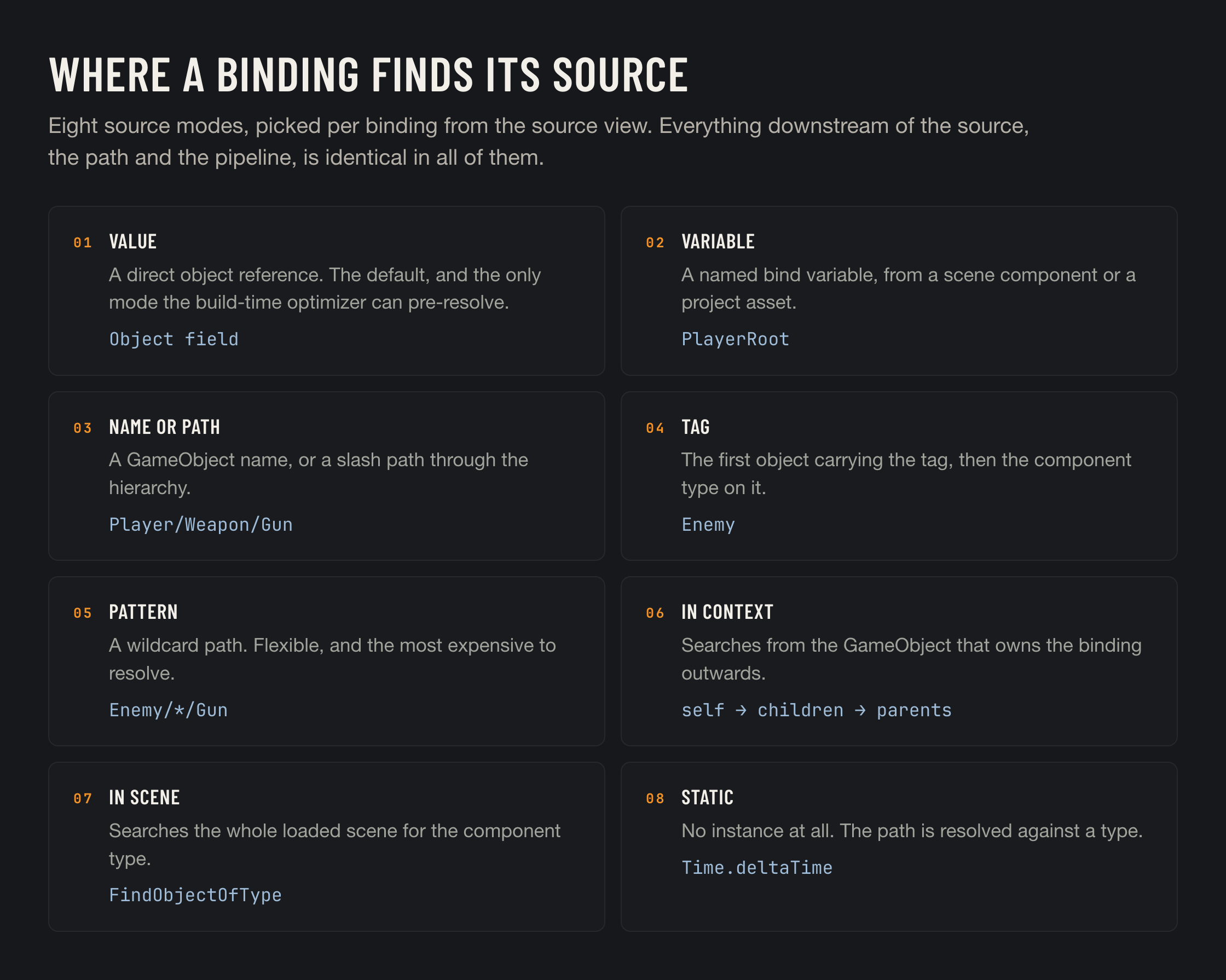
Eight ways to say which object a binding reads from.

A direct object reference is the obvious way to name a source, and it is the default. It is also the one thing a prefab cannot do across scenes, and the one thing that breaks when an object is spawned at runtime. The other seven modes exist for those cases.

<figure><img src="https://3048705056-files.gitbook.io/~/files/v0/b/gitbook-x-prod.appspot.com/o/spaces%2FLUfBXR02sJ5i0MxwYbaV%2Fuploads%2Fgit-blob-055c91d99a8e6d20ac01b9cc11d87aabe881d954%2Fsource-modes.png?alt=media" alt="The eight source modes"><figcaption></figcaption></figure>

## Choosing the mode

Open the source view (the **source toggle** on the bind row) and pick from the **mode dropdown**. It lists one mode per line, cheapest first, in three groups:

<table><thead><tr><th width="200">Group</th><th>Modes</th></tr></thead><tbody><tr><td><em>(first line)</em></td><td><strong>From Object</strong>: the reference is already in hand.</td></tr><tr><td><strong>Looked Up</strong></td><td><strong>From Variable</strong>, <strong>From Static Value</strong>: found by name in a table, nothing is searched.</td></tr><tr><td><strong>Searched For</strong></td><td><strong>From Context</strong>, <strong>From Object with Tag</strong>, <strong>From Scene</strong>, <strong>From Path</strong>, <strong>From Pattern</strong>: found by looking through the hierarchy while the game runs.</td></tr></tbody></table>

Each line carries the mode's icon and five dots for its [runtime cost](#cost), both in the mode's colour. Hover a line and a strip at the foot of the dropdown says what that mode does. The closed dropdown's tooltip has the full help: what the mode does, how to use it, an example, and the cost.

The same colour lights the source toggle on the bind row from below, so the mode of a binding can be read without opening it. The scale runs from green, for the modes that cost nothing at runtime, through blue to violet for the ones that search the scene. It never reaches orange or red, which are kept for debugging and for errors: an expensive mode is a choice, not a fault.

Two modes can also be chosen straight from the bind path menu, under **Other Sources**, because they have something enumerable behind them:

* **From Variable** lists the bind variables available to this field.
* **From Static Value Of** lists types: the ones most often bound (`Time`, `Screen`, `Application`, `Input`, `Physics`, `Mathf`, `DateTime` and the like) first, then everything else under **In This Project**, **In Unity** and **In .NET**, each by namespace.

Picking an entry there sets the mode, the source spec and the path in one go.

<figure><img src="https://3048705056-files.gitbook.io/~/files/v0/b/gitbook-x-prod.appspot.com/o/spaces%2FLUfBXR02sJ5i0MxwYbaV%2Fuploads%2FtBBB4NjKYSTBKCydKQFb%2FScreenshot%202026-09-27%20at%2022.28.44.png?alt=media&amp;token=bc7ef721-b7a3-4ffc-b393-a9691f862855" alt="" width="563"><figcaption><p>The source view with the mode dropdown open</p></figcaption></figure>

{% hint style="info" %}
The shortcut only appears while the path is still empty. Once a path is set, changing the source mode from the menu would silently drop it, so the change has to be made explicitly in the source view.
{% endhint %}

## The modes

### Value

The default, called **From Object** in the dropdown. A direct `UnityEngine.Object` reference: a component, a GameObject, an asset, a material, a `ScriptableObject`.

```
Source = MyMaterial     →     the path resolves against that exact object
```

This is also the only mode the [build-time optimizer](/binding-system-3/project-tools/performance/optimized-accessors.md) can pre-resolve, because it is the only one that is fully known before the game runs.

### Variable

The source is whatever a **named bind variable** currently points at. The variable lives in a scene component or a project asset, and can be changed in one place for every binding that uses it.

```
Variable "player"     →     reads through whichever GameObject 'player' points to
```

This is the mode to use in prefabs. The prefab refers to a name, and each scene supplies the object. See [Bind Variables](/binding-system-3/overview/bind-variables.md).

#### Changing a variable from code

Every binding that uses the variable follows the moment it changes, so this is how you repoint many bindings at once from a script.

Variables are addressed by **id**, not by name. The id is a GUID generated when the variable is created, and it survives renaming the variable, which is why bindings store it.

```csharp
using Postica.BindingSystem;

// If you have the id, this is the whole job. It throws if the id
// is unknown, or if T is not the type the variable was declared with.
BindVariablesSystem.SetVariableValue(variableId, playerTransform);

// The same thing through the variable itself.
if (BindVariablesSystem.TryGetVariable(variableId, out var variable))
    variable.Value = playerTransform;
```

If all you have is the name, look the variable up once and keep the reference, or keep its `Id`:

```csharp
IBindVariable player = BindVariablesSystem
    .GetAllVariables()
    .FirstOrDefault(v => v.VariableName == "player");

player.Value = playerTransform;   // Value is object, so a value type is boxed here
```

A variable also reports its own changes, whoever made them:

```csharp
player.OnValueChanged += v => Debug.Log($"{v.VariableName} is now {v.Value}");
```

{% hint style="info" %}
Writing to a variable is not the only way to move a value through one. A variable can also push into targets of its own when it changes, which needs no code at all. See [On Value Change](/binding-system-3/overview/bind-variables.md#on-value-change).
{% endhint %}

### Name or Path

A GameObject name, or a slash separated hierarchy path.

```
Gun                    →     the first GameObject named "Gun"
Player/Weapon/Gun      →     "Gun" under "Weapon" under "Player"
```

Pick the component **type** to fetch from the object it finds, and optionally a [context](#the-context) to keep the search inside one object's hierarchy rather than every loaded scene. With a context, `Weapon/Gun` may start anywhere inside it, and `/Weapon/Gun` starts at its direct children.

### Tag

The first active GameObject carrying a tag, then the component type on it. With a [context](#the-context), only the context's own hierarchy is looked through.

```
Tag "Player" + Type Rigidbody                       →     the Rigidbody of the first Player-tagged object
Context "Enemies" + Tag "Boss" + Type Health        →     the Health of the first Boss inside "Enemies"
```

### Pattern

A glob against hierarchy paths. The most flexible, and the most expensive.

<table><thead><tr><th width="120">Wildcard</th><th>What it matches</th></tr></thead><tbody><tr><td><code>*</code></td><td>Matches one path segment.</td></tr><tr><td><code>**</code></td><td>Matches any sequence of segments.</td></tr><tr><td><code>?</code></td><td>Matches a single character.</td></tr></tbody></table>

```
Enemy/*/Gun      →     "Gun" inside any direct child of any "Enemy"
Level/**/Door    →     any "Door" at any depth under "Level"
```

The longest non-wildcard prefix is used as a fast lookup before the wildcard scan begins, so anchoring the pattern with a literal first segment makes a real difference. With a [context](#the-context), the pattern is matched against the paths inside it, written from its children down.

### In Context

Resolved from the [context](#the-context) object, or from the object that owns the binding when no context is set. Combine with a [search mode](#search-modes) to say where to look around it.

```
Context = self + Search "In Children" + Type Animator
    →   the Animator on the first matching child
```

This is the mode for self-contained prefabs: a component that reaches for something nearby without anybody wiring it up.

### In Scene

Scans all loaded scenes for the first object of a type. Convenient for singletons, expensive if you use it everywhere.

```
Type GameManager     →     the first GameManager in any loaded scene
```

The scan runs once per resolution and the result is cached until the scene changes.

### Static

No instance at all. The path is resolved against the type itself, and only its static members are reachable.

```
Type Time + "deltaTime"     →     reads Time.deltaTime
Type Mathf + "PI"           →     a constant, with no object anywhere
```

The type list is filtered to types that actually declare a bindable static member, and editor-only namespaces are excluded because they cannot exist in a build.

To see **which objects read the same class**, turn the [Scene Visualizer](/binding-system-3/project-tools/diagnostics/scene-visualizer.md#shared-source-points) on: every binding reading one static class is drawn from a single point in the scene, marked with a triangle and labelled with the class name. Hovering it lists the members actually read; clicking it selects the objects that read them.

## Search modes

Three of the modes (**Name or Path**, **Tag**, **In Context**) accept a search mode, set with the small hierarchy button beside the source spec.

<table><thead><tr><th width="230">Search</th><th>What it covers</th></tr></thead><tbody><tr><td><strong>Self</strong></td><td>Only the object found.</td></tr><tr><td><strong>In Children</strong></td><td>The object and its children.</td></tr><tr><td><strong>In Parents</strong></td><td>The object and its parents.</td></tr><tr><td><strong>In Hierarchy</strong></td><td>Children first, then parents, so the closest match wins.</td></tr></tbody></table>

The first component of the requested type found in that order is used.

## The context

Four modes share one more field: **Name or Path**, **Tag**, **Pattern** and **In Context**. The context is the **root of the search**. It is easy to read as a hint and it is not one: it decides where the search is allowed to look.

<table><thead><tr><th width="200">Mode</th><th>With a context</th><th>Without one</th></tr></thead><tbody><tr><td><strong>Name or Path</strong></td><td>The shallowest active object with that name inside the context, the context itself included.</td><td>Every loaded scene.</td></tr><tr><td><strong>Tag</strong></td><td>The shallowest active object with that tag inside the context.</td><td>Every loaded scene.</td></tr><tr><td><strong>Pattern</strong></td><td>Paths inside the context, written from its children down.</td><td>Paths from the roots of every loaded scene.</td></tr><tr><td><strong>In Context</strong></td><td>Starts from the context.</td><td>Starts from the object that owns the binding.</td></tr></tbody></table>

Narrowing a search this way is both faster and safer. A prefab that looks for `Gun` inside its own hierarchy finds its own gun, not the first one in the scene.

When the context is empty in the first three modes, a pill offers **Use** followed by the name of the binding's own GameObject. It sets that GameObject as the context in one click. With several objects selected it reads **Use own objects**, and each one gets its own GameObject rather than one shared reference.

A context that is neither a GameObject nor a component finds nothing, rather than quietly widening the search to every scene, and the source view says so. The context is kept when you change mode, since four modes share it.

{% hint style="info" %}
Projects made with an earlier version may carry contexts that were set and ignored. They take effect now, so a search that used to find an object outside its context no longer does.
{% endhint %}

## The status light

Modes that resolve by name, tag or pattern show a small status icon next to the spec, and it is worth trusting.

<table><thead><tr><th width="160">Colour</th><th>What it means</th></tr></thead><tbody><tr><td>Green</td><td>Matched, and the type filter accepted the result. Click the icon to highlight the matches.</td></tr><tr><td>Yellow</td><td>The name or pattern matched something, but nothing there has the component type you asked for. Click to highlight the near misses.</td></tr><tr><td>Red</td><td>Nothing matched at all.</td></tr></tbody></table>

<figure><img src="https://3048705056-files.gitbook.io/~/files/v0/b/gitbook-x-prod.appspot.com/o/spaces%2FLUfBXR02sJ5i0MxwYbaV%2Fuploads%2FqF9TtXjEdJvaE631lMWc%2FScreenshot%202026-09-27%20at%2022.30.57.png?alt=media&amp;token=aa780d26-c9ab-4881-81c7-9a65dd985657" alt="" width="563"><figcaption><p>The status light with matches highlighted</p></figcaption></figure>

## Cost

The modes are not equally cheap, and it matters when a binding resolves its source repeatedly.

The dropdown shows the same scale as five dots per mode.

<table><thead><tr><th width="200">Mode</th><th width="150">Cost</th><th>What happens</th></tr></thead><tbody><tr><td>Value (From Object)</td><td>None</td><td>The reference is already in hand. Nothing is looked up.</td></tr><tr><td>Variable</td><td>●○○○○ Negligible</td><td>One lookup in the variables table.</td></tr><tr><td>Static</td><td>●○○○○ Negligible</td><td>One lookup of the type. Nothing is searched for.</td></tr><tr><td>Tag</td><td>●●○○○ Low</td><td>A search for the tag, in the context's hierarchy when one is set.</td></tr><tr><td>In Context</td><td>●●○○○ Low</td><td>A component search on the context, or on the owner, and on its children or parents if asked.</td></tr><tr><td>In Scene</td><td>●●●○○ Moderate</td><td>A scan of every loaded scene for the first object of the type.</td></tr><tr><td>Name or Path</td><td>●●●●○ High</td><td>A walk of the hierarchy by name, the context's own when one is set. The deeper it goes, the longer it takes.</td></tr><tr><td>Pattern</td><td>●●●●● Highest</td><td>A wildcard scan of the hierarchy, narrowed by the longest literal prefix.</td></tr></tbody></table>

Every mode caches its result, and the cache is invalidated when the resolved object stops being alive. The cost shown is the cost of a **miss**, not of every frame.

{% hint style="warning" %}
A source that genuinely cannot be found is the expensive case, because a failed lookup cannot be cached as a success. The status light exists so you catch that at authoring time rather than in a profiler.
{% endhint %}

## Source not needed

Some bindings do not want a source at all. The **Nothing** entry in the bind path menu binds to nothing on purpose: reads return the default value, writes are discarded, and the modifiers still run. That is how you build a binding whose only job is its modifier chain, for example one that watches a value which comes from elsewhere.

## From code

Source modes are `BindFlags` values, so they can be set programmatically:

```csharp
var data = new BindData(null, "position.x", null, -1);
data.TryEnableFlag(BindFlags.SourceInContext, true);
data.TryEnableFlag(BindFlags.SearchInChildren, true);
data.SourceContext = transform;
```

See [BindFlags](/binding-system-3/reference/bind-flags.md) for the exact bit values, and [Binding from Code](/binding-system-3/overview/code.md) for the whole runtime API.
