> For the complete documentation index, see [llms.txt](https://postica.gitbook.io/binding-system-3/llms.txt). Markdown versions of documentation pages are available by appending `.md` to page URLs; this page is available as [Markdown](https://postica.gitbook.io/binding-system-3/pipeline/modifier-catalogue/boolean-values.md).
# Boolean values
Modifiers for true and false values.
## Invert Boolean
Reverses a true/false value.
**Parameters:** none.
{% hint style="info" %}
**Example:** `true` becomes `false`. Use it when a source reports `isHidden` but the target needs `isVisible`.
{% endhint %}
***
## Logic Operation
Combines the incoming true/false value with another one.
The Logic Operation modifier
**Parameters:** choose **Operator**: AND, OR, XOR, or NOT. Set **Operand** for AND, OR, and XOR; NOT only reverses the incoming value.
{% hint style="info" %}
**Example:** AND with Operand `true` preserves the incoming value, while AND with Operand `false` always returns `false`. OR with a bound `hasPermission` value can enable an element when either condition is true.
{% endhint %}
Use named boolean fields for complex rules. It is usually easier to understand several small conditions than one long expression.
{% hint style="info" %}
In a two-way binding, NOT and XOR are undone exactly. AND with Operand `true`, and OR with Operand `false`, pass the value through, which is also exact. The remaining combinations, AND with `false` and OR with `true`, always produce the same result, so nothing can be recovered from them on the way back.
{% endhint %}
***
## Bool Expression
Lets you describe a true/false rule as an expression. Use `x` for the incoming value, then combine it with comparisons and logical words such as `and`, `or`, and `not`.
The Bool Expression modifier
**Parameters:** enter the rule in **Expression**. Use `x` for the incoming value and add extra variables if the expression field provides them.
{% hint style="info" %}
**Example:** `x and hasPermission` keeps a button enabled only when both values are true. `not x` does the same job as Invert Boolean.
{% endhint %}
Use Logic Operation for a single simple condition. Choose Bool Expression only when the rule is clearer as one readable sentence.
### Creating variables
As with [Math Expression](/binding-system-3/pipeline/modifier-catalogue/numbers.md#math-expression), write a new name directly in the formula and press **Enter** or click away. The modifier creates a bindable true/false field for that name. `x` and `input` already refer to the incoming value.
A new variable, created by naming it in the rule
{% hint style="info" %}
**Step-by-step example:** enter `x and hasPermission`, then press **Enter**. Bind the new **hasPermission** field to the player's permission flag. The result is true only when both the incoming value and the permission flag are true.
{% endhint %}
You can write `and`, `or`, and `not`, or use `&&`, `||`, and `!`. Comparisons are written as `==` and `!=`, or spelled out as `equals` and `notequals`. Use parentheses to make a longer rule clear: `(x and hasPermission) or isDeveloper`.
### The help panel and the live preview
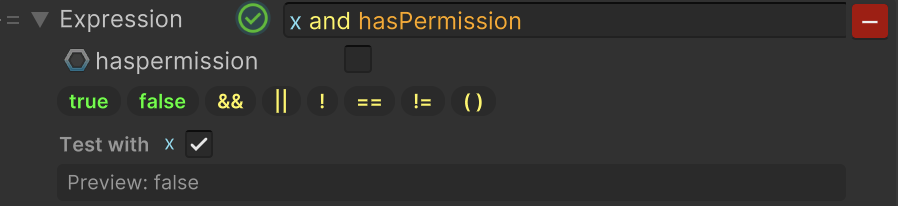
Click the icon at the left of the expression field to open a panel below it. The panel lists what the rule can be built from, `true` and `false`, the logical operators, the comparisons, and parentheses, as clickable chips, colored the same way the expression itself is colored. Hovering a chip explains what it does; clicking one inserts it at the caret, ready to run, with the part you are most likely to change already selected.
Bool Expression with the help panel open
The panel also shows a live **Preview** of the result, plus a **Test with** row holding one toggle per incoming value, which stands in for the bound value while you edit. Nothing typed there is saved into the binding: it only exists in the inspector. When the rule cannot be parsed, the preview shows the error instead of a result.
{% hint style="info" %}
The modifiers on this page change a true/false value. To react to one instead, invoking an event when it becomes `true` for instance, see [Events and conditions](/binding-system-3/pipeline/modifier-catalogue/events-and-conditions.md). [Value Conditions](/binding-system-3/pipeline/modifier-catalogue/events-and-conditions.md#value-conditions) also works the other way round: it turns a rule about any other kind of value into the true/false value these modifiers can then work on.
{% endhint %}
## Related pages
* [Modifier Catalogue](/binding-system-3/pipeline/modifier-catalogue.md): every modifier, by value type.
* [Events and conditions](/binding-system-3/pipeline/modifier-catalogue/events-and-conditions.md): reacting to a value instead of changing it.