> For the complete documentation index, see [llms.txt](https://postica.gitbook.io/binding-system-3/llms.txt). Markdown versions of documentation pages are available by appending `.md` to page URLs; this page is available as [Markdown](https://postica.gitbook.io/binding-system-3/pipeline/modifier-catalogue/numbers.md).

# Numbers

Every numeric modifier, with its parameters and what it is for.

These apply to every numeric type: `int`, `long`, `float`, `double`, and the rest. Almost every parameter on this page can itself be a binding, so a clamp whose maximum comes from a difficulty setting is the normal case rather than an advanced one.

## Absolute Value

Turns a negative number into a positive one. Positive numbers and zero stay unchanged.

**Parameters:** none.

{% hint style="info" %}
**Example:** `-12` becomes `12`. Use this for a distance, magnitude, or any value that should never be negative.
{% endhint %}

***

## Clamp Value

Keeps a number inside a minimum and maximum range.

<figure><img src="https://3048705056-files.gitbook.io/~/files/v0/b/gitbook-x-prod.appspot.com/o/spaces%2FLUfBXR02sJ5i0MxwYbaV%2Fuploads%2Fgit-blob-002e67b3807c0a89015113180939f98b7d33b7e2%2Fmodifier-clamp-value.png?alt=media" alt="" width="563"><figcaption><p>The Clamp Value modifier</p></figcaption></figure>

**Parameters:** set **Min** to the lowest allowed value and **Max** to the highest allowed value.

{% hint style="info" %}
**Example:** with Min `0` and Max `100`, values of `-20`, `45`, and `130` become `0`, `45`, and `100`.
{% endhint %}

Use it for health, progress, opacity, sliders, or any value with a safe range. Keep Min lower than Max so the result is easy to reason about.

***

## Modulus Value

Keeps only the remainder after division. It is useful for values that should wrap around.

<figure><img src="https://3048705056-files.gitbook.io/~/files/v0/b/gitbook-x-prod.appspot.com/o/spaces%2FLUfBXR02sJ5i0MxwYbaV%2Fuploads%2Fgit-blob-a4cf143b8db3889d1062d0c4bfdd4d812379cde1%2Fmodifier-modulus-value.png?alt=media" alt="" width="563"><figcaption><p>The Modulus Value modifier</p></figcaption></figure>

**Parameters:** set **Modulus** to the size of one complete cycle.

{% hint style="info" %}
**Example:** with Modulus `360`, an angle of `725` becomes `5`. With Modulus `10`, a counter can repeat from `0` to `9`.
{% endhint %}

Use a positive, non-zero modulus. A modulus of `0` cannot produce a useful result.

***

## Normalize Value

Changes a number from a known range into a value between `0` and `1`.

<figure><img src="https://3048705056-files.gitbook.io/~/files/v0/b/gitbook-x-prod.appspot.com/o/spaces%2FLUfBXR02sJ5i0MxwYbaV%2Fuploads%2Fgit-blob-c38cd94b8319f01150e14a72a9d6164ec367ab08%2Fmodifier-normalize-value.png?alt=media" alt="" width="563"><figcaption><p>The Normalize Value modifier</p></figcaption></figure>

**Parameters:** set **Min** and **Max** to the range used by the original value.

{% hint style="info" %}
**Example:** with Min `0` and Max `100`, a health value of `75` becomes `0.75`, which is ready for a progress bar.
{% endhint %}

Use the same Min and Max everywhere that shares the normalized value. Combine this with Clamp Value first if the original value can go outside the expected range.

{% hint style="info" %}
Normalize Value always produces a value between `0` and `1`. Use [Remap Range](#remap-range) when the result needs a different range, or when the mapping should be eased instead of proportional.
{% endhint %}

***

## Remap Range

Changes a number from one range into another, optionally shaping the mapping with an easing curve.

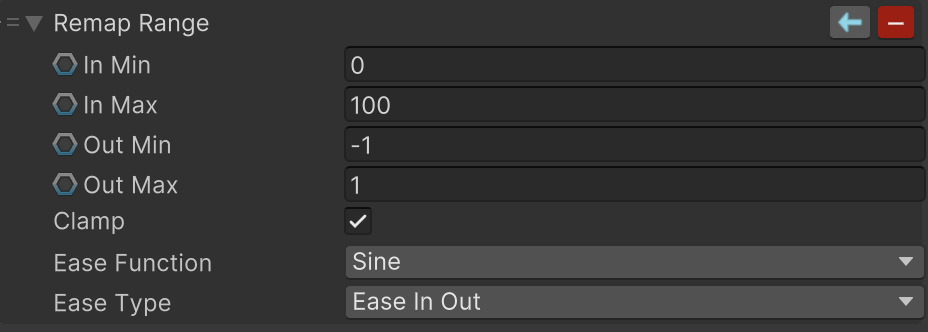
<figure><img src="https://3048705056-files.gitbook.io/~/files/v0/b/gitbook-x-prod.appspot.com/o/spaces%2FLUfBXR02sJ5i0MxwYbaV%2Fuploads%2Fgit-blob-cca8ab8a1b7db9bae6e883648fce4a9b85436cd9%2Fmodifier-remap-range.png?alt=media" alt="" width="563"><figcaption><p>The Remap Range modifier</p></figcaption></figure>

**Parameters:** set **In Min** and **In Max** to the range the incoming value uses, and **Out Min** and **Out Max** to the range the result should use. Enable **Clamp** to keep the result inside the output range, or disable it to let values outside the input range continue past its ends. Choose an **Ease Function** and **Ease Type** to shape the mapping; `Linear` maps proportionally and ignores the ease type.

{% hint style="info" %}
**Example:** with In Min `0`, In Max `100`, Out Min `-1` and Out Max `1`, a value of `50` becomes `0` and a value of `100` becomes `1`. This is useful for turning a percentage into the range a joystick, an audio pan, or a shader property expects.
{% endhint %}

This is the general form of Normalize Value: an output range of `0` to `1` with a `Linear` function does exactly the same job. Use Remap Range when the output range is something else, when the mapping should accelerate or decelerate, or when the value is an integer type.

All four range values can be bound, so a range can follow another value while the game runs. Keep **Clamp** enabled unless values outside the input range are expected and meaningful.

The **Ease Function** list is shared with the [motion modifiers](/binding-system-3/pipeline/tweening.md), so it also contains `Custom`. There is no curve to draw here, so `Custom` behaves as `Linear`; use [Evaluate Curve](#evaluate-curve) when the shape has to be drawn by hand.

{% hint style="info" %}
The write direction is supported: values travelling back to the source are mapped from the output range into the input range again, easing included, so a two-way binding round-trips.
{% endhint %}

***

## Snap Value

Quantizes a number to a step, so that it can only take multiples of the step you choose.

<figure><img src="https://3048705056-files.gitbook.io/~/files/v0/b/gitbook-x-prod.appspot.com/o/spaces%2FLUfBXR02sJ5i0MxwYbaV%2Fuploads%2Fgit-blob-42e5246dc20ce6d7e43a7640ffb20d5a5a340f71%2Fmodifier-snap-value.png?alt=media" alt="" width="563"><figcaption><p>The Snap Value modifier</p></figcaption></figure>

**Parameters:** set **Step** to the size of one step, and choose **Mode**: `Round` for the nearest step, `Floor` for the step below, `Ceil` for the step above, or `Truncate` toward zero. A step of `0` or less leaves the value untouched.

{% hint style="info" %}
**Example:** with Step `0.25` and Mode `Round`, a value of `0.63` becomes `0.75`. With Step `45`, a rotation angle snaps to the eight compass directions.
{% endhint %}

To round to a fixed number of decimals, use the matching step: `0.1` for one decimal, `0.01` for two. Rounding goes away from zero at the halfway point, so `0.5` with a step of `1` snaps up to `1` rather than down to `0`.

On an integer binding the step is used as a whole number, and a fractional step is ignored because it has no meaning there.

{% hint style="info" %}
The write direction snaps as well, so a value written back to the source is a multiple of the step too. Snapping an already snapped value changes nothing, so a two-way binding stays stable.
{% endhint %}

***

## Operation

Applies one simple calculation to the incoming number.

<figure><img src="https://3048705056-files.gitbook.io/~/files/v0/b/gitbook-x-prod.appspot.com/o/spaces%2FLUfBXR02sJ5i0MxwYbaV%2Fuploads%2Fgit-blob-c42a42f84609b5861e10d297673b9a479d35a8c6%2Fmodifier-operation.png?alt=media" alt="" width="563"><figcaption><p>The Operation modifier</p></figcaption></figure>

**Parameters:** choose **Operator**: Add, Subtract, Multiply, Divide, Modulus, Power, or Absolute. Set **Operand** to the other number used by the operation. Absolute does not use an operand.

{% hint style="info" %}
**Example:** Multiply with Operand `2` changes `35` into `70`. Add with Operand `10` can turn a raw score into a displayed score with a bonus.
{% endhint %}

Use Operation when one clear calculation is enough. For a calculation with several steps, use Math Expression instead. Avoid dividing by an operand that may become `0`.

***

## Evaluate Curve

Shapes a number with an animation curve that you draw yourself.

<figure><img src="https://3048705056-files.gitbook.io/~/files/v0/b/gitbook-x-prod.appspot.com/o/spaces%2FLUfBXR02sJ5i0MxwYbaV%2Fuploads%2Fgit-blob-67caea6200d10d7d5130da7aa02aadda79b391d8%2Fmodifier-evaluate-curve.png?alt=media" alt="" width="563"><figcaption><p>The Evaluate Curve modifier</p></figcaption></figure>

**Parameters:** draw the shape in **Curve**. Set **Input Range** to the range of the incoming value, which is mapped onto the curve's horizontal axis, and **Output Range** to the range the curve's height is mapped onto.

{% hint style="info" %}
**Example:** with Input Range `(0, 1)` and Output Range `(0, 1)`, an S-shaped curve makes a progress value move slowly at the start and end and quickly in the middle. With Output Range `(1, 2)`, the same curve drives a scale that eases between normal and double size.
{% endhint %}

Use this when the relationship between input and output is easier to draw than to describe. Use Remap Range when a standard easing function is enough, and Math Expression when the relationship is a formula.

The result is not clamped, so a curve whose tangents overshoot past its ends produces values outside the output range as well. That is often what you want for a bouncy effect, and easy to avoid by flattening the tangents.

{% hint style="warning" %}
An arbitrary curve cannot be reversed, so values travelling back to the source pass through unchanged. Set the modifier to **Write** mode if the curve should be applied while writing instead.
{% endhint %}

***

## Math Expression

Lets you write a custom formula when the standard operations are not enough. Use `x` in the formula to represent the incoming value. You can also add other values to the expression when needed.

**Parameters:** enter the formula in **Expression**. Use `x` for the incoming number and add any extra variables offered by the expression field.

<figure><img src="https://3048705056-files.gitbook.io/~/files/v0/b/gitbook-x-prod.appspot.com/o/spaces%2FLUfBXR02sJ5i0MxwYbaV%2Fuploads%2Fgit-blob-abd6224d763d874d022b96c3b50389a4e3144f39%2Fmodifier-math-expression.png?alt=media" alt="" width="563"><figcaption><p>The Math Expression modifier</p></figcaption></figure>

<figure><img src="https://3048705056-files.gitbook.io/~/files/v0/b/gitbook-x-prod.appspot.com/o/spaces%2FLUfBXR02sJ5i0MxwYbaV%2Fuploads%2Fgit-blob-584997fcfe3bbf6e57e685b4754499954af86da8%2Fmodifier-math-expression-fields.png?alt=media" alt="" width="563"><figcaption><p>A formula with its generated variable fields</p></figcaption></figure>

{% hint style="info" %}
**Example:** `x * 0.01` turns a score of `7500` into `75`. `x * x` squares the incoming value.
{% endhint %}

{% hint style="warning" %}
Keep expressions short and give extra variables clear names. Test edge cases such as `0`, negative values, and large values before using an expression in gameplay.
{% endhint %}

### Creating variables

You do not need to create variables separately. Type a new name directly in the formula, then press **Enter** or click outside the expression field. The modifier parses the formula and creates a bindable field for every new name it finds.

<figure><img src="https://3048705056-files.gitbook.io/~/files/v0/b/gitbook-x-prod.appspot.com/o/spaces%2FLUfBXR02sJ5i0MxwYbaV%2Fuploads%2Fgit-blob-f5887f90e26ee7de0d6e87604c28a913944c3487%2Fmodifier-math-expression-variables.png?alt=media" alt="" width="563"><figcaption><p>A new variable, created by naming it in the formula</p></figcaption></figure>

`x` is already available and represents the incoming value. `input` is an alternative name for the same value, so neither creates an extra field.

{% hint style="info" %}
**Step-by-step example:** enter `x * scale + offset`, then press **Enter**. The inspector adds **offset** and **scale** fields below the formula. Set scale to `0.01`, then bind offset to a float such as a score bonus. An incoming value of `7500` becomes `75 + offset`.
{% endhint %}

### The help panel and the live preview

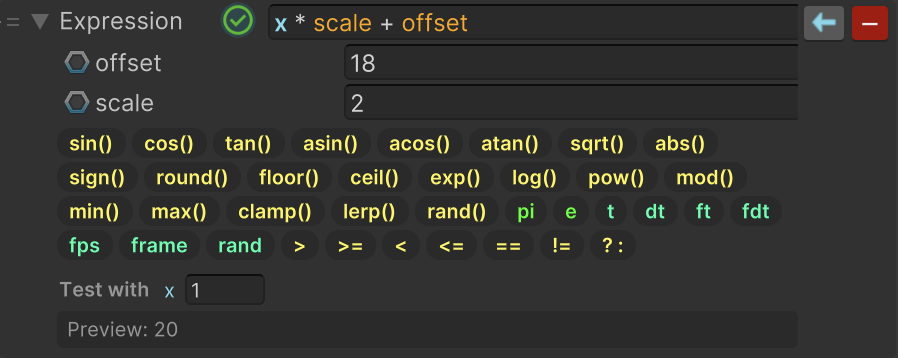
Click the icon at the left of the expression field to open a panel below it. The panel lists everything the expression understands as clickable chips, grouped and colored the same way the formula itself is colored: functions and operators in yellow, constants in green, and automatic variables in aqua. Hovering a chip explains what it does; clicking one inserts it at the caret, already complete and ready to run, with the part you are most likely to change selected so you can type straight over it.

<figure><img src="https://3048705056-files.gitbook.io/~/files/v0/b/gitbook-x-prod.appspot.com/o/spaces%2FLUfBXR02sJ5i0MxwYbaV%2Fuploads%2Fgit-blob-243c3b0e39aa2b676c8fb0d488eee304c0e427b5%2Fmodifier-math-expression-help.png?alt=media" alt="" width="563"><figcaption><p>Math Expression with the help panel open</p></figcaption></figure>

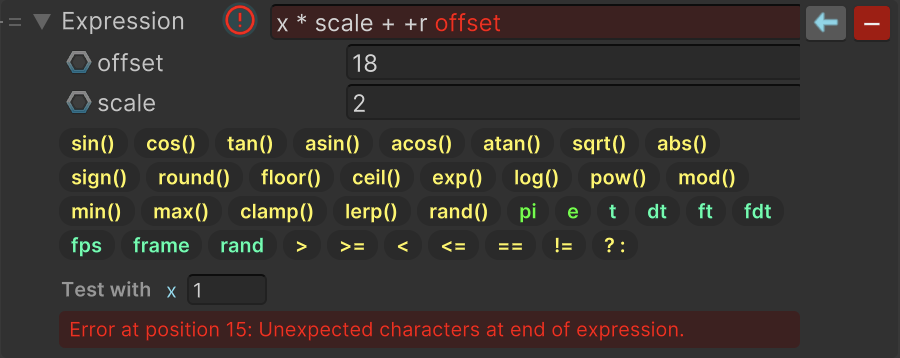
The same panel shows a live **Preview** of the result, plus a **Test with** field. The test value stands in for the bound value while you are editing, so the preview shows a real number instead of a placeholder. Nothing you type there is saved into the binding: it only exists in the inspector. When the formula cannot be parsed, the preview shows the error instead of a result.

<figure><img src="https://3048705056-files.gitbook.io/~/files/v0/b/gitbook-x-prod.appspot.com/o/spaces%2FLUfBXR02sJ5i0MxwYbaV%2Fuploads%2Fgit-blob-0df8fcf5f5a4df5d1b91c53f6e3fe7a9c10e54b5%2Fmodifier-math-expression-error.png?alt=media" alt="" width="563"><figcaption><p>Math Expression reporting an error</p></figcaption></figure>

### Expression basics

Use `+`, `-`, `*`, `/`, and `^` for common calculations, and parentheses to control the order.

Functions: `sin`, `cos`, `tan`, `asin`, `acos`, `atan`, `sqrt`, `abs`, `sign`, `round`, `floor`, `ceil`, `exp`, `log`, `pow`, `mod`, `min`, `max`, `clamp`, `lerp`, and `rand`. The trigonometric functions work in radians. `log(value)` is the natural logarithm, and `log(value, base)` uses another base. `pow(value, exponent)`, `mod(value, divisor)`, `clamp(value, min, max)`, `lerp(from, to, amount)` and `rand(min, max)` take their arguments in that order.

The constants `pi` and `e` are available without creating bindings.

For a choice inside a formula, use `condition ? valueWhenTrue : valueWhenFalse`. For example, `x < 0 ? 0 : x` changes negative values to `0`. Comparisons, `>`, `>=`, `<`, `<=`, `==` and `!=`, produce `1` when they hold and `0` when they do not, so they can also be multiplied into a formula directly.

These variables are updated by the system while the application runs:

| Variable | Meaning                                                   |
| -------- | --------------------------------------------------------- |
| `t`      | Seconds since the game started.                           |
| `dt`     | Seconds since the previous frame.                         |
| `ft`     | Seconds at the last fixed update.                         |
| `fdt`    | Seconds between fixed updates.                            |
| `fps`    | Frames per second.                                        |
| `frame`  | Frames since the game started.                            |
| `rand`   | A new random number between `0` and `1` on every reading. |

Use them only when the formula genuinely needs time or randomness; otherwise a static expression is easier to predict. A formula that uses any of them, or that has a bound variable, is re-evaluated on every update rather than only when the incoming value changes.

{% hint style="info" %}
Need to react to a number rather than change it? [Value Events](/binding-system-3/pipeline/modifier-catalogue/events-and-conditions.md#value-events) delivers the number to other bindings and to `UnityEvent` listeners when it satisfies a condition such as `> 60` or `1..10`, and [Value Conditions](/binding-system-3/pipeline/modifier-catalogue/events-and-conditions.md#value-conditions) reports whether that condition holds as a true/false value.
{% endhint %}

## Related pages

* [Modifier Catalogue](/binding-system-3/pipeline/modifier-catalogue.md): every modifier, by value type.
* [Modifiers](/binding-system-3/pipeline/modifiers.md): how the stack works.
* [Tweening and Control](/binding-system-3/pipeline/tweening.md): numbers that move over time.