> For the complete documentation index, see [llms.txt](https://postica.gitbook.io/binding-system-3/llms.txt). Markdown versions of documentation pages are available by appending `.md` to page URLs; this page is available as [Markdown](https://postica.gitbook.io/binding-system-3/pipeline/modifier-catalogue/vectors.md).

# Vectors

Modifiers for Vector2, Vector3, Vector4 and their integer variants.

## Add Vector

Adds another vector to the incoming vector, component by component.

**Parameters:** set **Add** to the offset vector.

{% hint style="info" %}
**Example:** adding `(0, 1, 0)` to a position moves it one unit upward. Adding `(10, 0)` to a UI position moves it ten units to the right.
{% endhint %}

Use it for offsets to positions, sizes, directions, and other vector values. Keep the offset in the same coordinate space as the source value.

***

## Scale Vector

Scales each part of the incoming vector by another vector.

**Parameters:** set **Scale By** to the amount used for each axis.

{% hint style="info" %}
**Example:** scaling `(4, 2, 1)` by `(2, 1, 0.5)` produces `(8, 2, 0.5)`.
{% endhint %}

Use `(1, 1, 1)` to leave a three-dimensional vector unchanged. Avoid a scale of `0` when the value also needs to be changed back in the opposite direction.

***

## Rotate Vector

Rotates a vector, keeping its length.

<figure><img src="https://3048705056-files.gitbook.io/~/files/v0/b/gitbook-x-prod.appspot.com/o/spaces%2FLUfBXR02sJ5i0MxwYbaV%2Fuploads%2Fgit-blob-fa2d1d3ca6bece80c149cd38d85a1bb17b780c58%2Fmodifier-rotate-vector.png?alt=media" alt="" width="563"><figcaption><p>The Rotate Vector modifier</p></figcaption></figure>

**Parameters:** on a `Vector2`, set **Angle** to a counter-clockwise rotation in degrees. On a `Vector3`, set **Euler Angles** to the rotation to apply, in degrees.

{% hint style="info" %}
**Example:** on a `Vector2` direction, an Angle of `90` turns "right" into "up". On a `Vector3`, Euler Angles of `(0, 90, 0)` turns a forward direction into a sideways one.
{% endhint %}

Use this to move a direction or an offset from one frame of reference into another, such as turning a local offset into a world-space one. The angle can be bound, so a whole set of offsets can be rotated by a single live value.

Available for `Vector2` and `Vector3`. There is no integer version, because a rotation produces fractional components.

{% hint style="info" %}
The write direction applies the opposite rotation, so a two-way binding round-trips exactly.
{% endhint %}

***

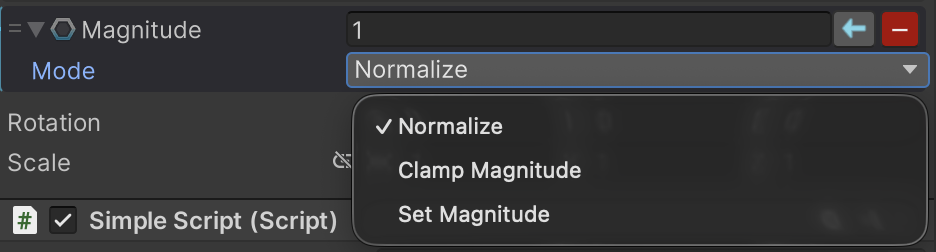
## Vector Magnitude

Changes the length of a vector while keeping its direction.

<figure><img src="https://3048705056-files.gitbook.io/~/files/v0/b/gitbook-x-prod.appspot.com/o/spaces%2FLUfBXR02sJ5i0MxwYbaV%2Fuploads%2Fgit-blob-69938c421cfd996c37b100f6337884fde98a9fb4%2Fmodifier-vector-magnitude.png?alt=media" alt="" width="563"><figcaption><p>The Vector Magnitude modifier</p></figcaption></figure>

**Parameters:** choose **Mode** and set **Magnitude**. `Normalize` makes the length exactly `1` and ignores the magnitude value. `SetMagnitude` makes the length equal to the magnitude. `ClampMagnitude` shortens the vector only when it is longer than the magnitude, and leaves shorter vectors alone.

{% hint style="info" %}
**Example:** `Normalize` turns a movement vector of any size into a pure direction. `ClampMagnitude` with Magnitude `5` limits how far an object can be offset from its anchor while keeping the direction it was pushed in.
{% endhint %}

A vector of zero length has no direction to preserve, so it passes through unchanged in every mode.

Available for `Vector2`, `Vector3`, and `Vector4`. There is no integer version, because the scaling factor is fractional.

{% hint style="warning" %}
Every mode discards the original length, so there is nothing to restore: values travelling back to the source pass through unchanged. Set the modifier to **Write** mode if the length should be adjusted while writing instead.
{% endhint %}

***

## Min Distance, Max Distance and Clamp Distance

Keep a vector within limits of distance from a center point, without changing its direction from that point. A vector too close is pushed straight out, one too far is pulled straight back in.

<table><thead><tr><th width="200">Modifier</th><th>Parameters</th></tr></thead><tbody><tr><td><strong>Min Distance</strong></td><td><strong>Distance</strong>, on the modifier's row: the closest the vector may come to the center. <strong>Center</strong>, inside the foldout.</td></tr><tr><td><strong>Max Distance</strong></td><td><strong>Distance</strong>, on the modifier's row: the furthest the vector may go from the center. <strong>Center</strong>, inside the foldout.</td></tr><tr><td><strong>Clamp Distance</strong></td><td><strong>Min</strong> and <strong>Max</strong>, the two limits, and <strong>Center</strong>.</td></tr></tbody></table>

The center starts at zero, where the distance is simply the length of the vector. Every parameter can be bound, so the center can follow an object.

{% hint style="info" %}
**Example:** Max Distance with Distance `3` and Center bound to the player's position keeps a companion's target position within three units of the player. Min Distance with Center bound to a hazard keeps a position from coming closer to it than the distance.
{% endhint %}

A vector sitting exactly on the center has no direction to be pushed out along, so a minimum leaves it where it is; a maximum still applies. A negative limit counts as zero, and a minimum above the maximum gives way to it.

Available for `Vector2`, `Vector3`, and `Vector4`. There is no integer version: the point a limit lands on is fractional, and rounding it would put the vector back on the wrong side of the limit.

{% hint style="warning" %}
A limited distance cannot be told apart from one that was already at the limit, so there is nothing to restore: values travelling back to the source pass through unchanged. Set the modifier to **Write** mode to apply the limits while writing instead.
{% endhint %}

***

## Swizzle Vector

Rearranges, negates, or replaces the components of a vector.

<figure><img src="https://3048705056-files.gitbook.io/~/files/v0/b/gitbook-x-prod.appspot.com/o/spaces%2FLUfBXR02sJ5i0MxwYbaV%2Fuploads%2Fgit-blob-89379aed9b621586808fd41159bc98af95a18263%2Fmodifier-swizzle-vector.png?alt=media" alt="" width="563"><figcaption><p>The Swizzle Vector modifier</p></figcaption></figure>

**Parameters:** in **Swizzle**, choose what supplies each output component. Every dropdown offers the source components, their negated forms such as `-X`, and the constants `0` and `1`.

{% hint style="info" %}
**Example:** on a `Vector3`, choosing `(x, z, y)` swaps the up axis with the depth axis, which is handy when data comes from a tool that uses a different convention. Choosing `(-x, y, z)` mirrors a position across the X axis, and setting a component to `0` flattens the vector onto a plane.
{% endhint %}

Available for `Vector2`, `Vector3`, `Vector4`, `Vector2Int`, and `Vector3Int`. Negation and the `0` and `1` constants are exact on the integer types too.

{% hint style="info" %}
The write direction undoes the rearrangement whenever it can be undone, that is, when every component is used exactly once, signs included. A swizzle that drops, duplicates, or replaces a component cannot be undone, and the value passes through unchanged.
{% endhint %}

***

## Vector Expression

Lets you write a separate formula for each part of a vector.

**Parameters:** enter one expression per available component. Use `x`, `y`, `z`, and `w` to refer to the matching incoming components.

{% hint style="info" %}
**Example:** for a Vector3, use `x * 2`, `y`, and `z` to widen the value only on its X axis.
{% endhint %}

Use Add Vector or Scale Vector for common changes, Swizzle Vector when components only need to be moved around, and Vector Expression when each axis needs a different calculation.

### Working with components

Each component has its own formula, but every formula can use the other components. A Vector3 expression can use `x`, `y`, and `z`; a Vector4 can also use `w`. The defaults pass every component through unchanged.

{% hint style="info" %}
**Step-by-step example:** for a Vector3, set X to `x * 2`, Y to `y`, and Z to `z`. The result doubles only the horizontal component. This is useful when a spawn offset or UI position needs a custom adjustment on one axis.
{% endhint %}

New float variables are created by typing their names in a component formula and pressing **Enter**. As with Color Expression, Vector Expression only changes values travelling from the source to the target.

Every component field is a full expression field, so it also has the help panel with clickable function chips and the live preview described in [Math Expression](/binding-system-3/pipeline/modifier-catalogue/numbers.md#the-help-panel-and-the-live-preview).

{% hint style="info" %}
Looking for a way to move a vector partway toward another one? See [Blend To](/binding-system-3/pipeline/modifier-catalogue/values-and-references.md#blend-to), which works on vectors as well as on numbers and colors.
{% endhint %}

{% hint style="info" %}
To react to a vector rather than change it, invoking an event when a specific value arrives, or driving a boolean while it does, see [Events and conditions](/binding-system-3/pipeline/modifier-catalogue/events-and-conditions.md).
{% endhint %}

## Related pages

* [Modifier Catalogue](/binding-system-3/pipeline/modifier-catalogue.md): every modifier, by value type.
* [Tweening and Control](/binding-system-3/pipeline/tweening.md): vectors that move over time.